Showing posts with label OS. Show all posts

Sunday, 6 February 2011

Creating hidden folder in XP

Do you want to make hidden folder in windows XP? If yes just follow some simple steps.

1. Create a new folder


Right Click on folder and click rename

Now hold ALT and press 255 in numeric and release ALT, You will see hidden name of folder.


Now to make it more hidden, right click on folder,Click Properties and Click Customize tab


Click Change Icon and select a blank Icon.


Click OK and Apply settings, Now you will see the effect.

If you have problems regarding that just leave a comment.

Access to a computer without knowing password of any user.

With this amazing trick you will be able to access to a computer without knowing password of any user.

Just follow some easy steps.

  • Hold F8 for 5 seconds when turn on your computer
  • Now select safe mode using arrow keys and press enter
  • Press enter again
  • Random codes must be on the screen. Now wait for just about 2 minutes after that you can log in

Adding Symbols to a Text using shortcut keys

Alt Key + Calculator Number = Symbol.

To create the ® symbol Alt + 0174 = ®

Alt Key + Number = Symbol

130 = é [accent over e ]
0176 = ° [degrees for Temperature]
0169 = © [Copyright]
0174 = ® [Registered Trademark]
0153 = ™ [Trade Mark]
155 = ¢ [cent sign]
156 = £ [Pound Sterling]
0165 = ¥ [Japanese Yen sign]
0128 = € [Euro symbol]
0190 = ¾
171 = ½
172 = ¼
21 = §
144 = É [Capitalised accent over E]
241 = ±
246 = ÷
174 = «
175 = »
225 = ß
135 = ç
137 = ë
132 = ä
160 = á
133 = à
136 = ê
15 = ¤
170 = ¬
159 = ƒ
146 = Æ
145 = æ
129 = ü
253 = ² [Square sign]
350 = ^
352 = `
382 = ~
166 = ª
254 = ¦
249 = ·
152 = ÿ
142 = Ä
154 = Ü
230 = µ
0134 = † [dagger sign]
20 = ¶
195 = +
194 = -
168 = ¿
197 = +
0179 = ³ [cubic sign]
0161 = ¡

Saturday, 5 February 2011

Set a program to start using a keyboard shortcut


1.Click the Start menu, and then click All Programs. Right-click the program that you want to start with a keyboard shortcut, and then click Properties.


Shortcut menu for a program with Properties selected
2.Click in the Shortcut key box. Now press the letter on your keyboard that you want to use to start the program. Make it easy to remember—for example, press I for Microsoft Internet Explorer.
Note: You can use either uppercase or lowercase letters when creating your keyboard shortcuts—and when accessing them later. In the Shortcut key box, Microsoft Windows XP automatically adds Ctrl + Alt + before the key you pressed. When you want to start the program, hold down both the CTRL and ALT keys simultaneously, while also pressing the letter you chose. This way, your program won't start every time you type that letter.
Properties window for specified program with Shortcut tab displayed and Shortcut key box indicated
3.Click OK.
Properties window for specified program with Shortcut tab displayed and OK button selected
4.Now test your shortcut. Hold down the CTRL and ALT keys, and then press the letter you chose. If you find it difficult to hold down two keys at once, read Turn on the Sticky Keys feature. Your program should start.
Pressing shortcut keys
When your friends see you start up programs without touching your mouse, they just might think you have a psychic connection with your computer!

Friday, 1 October 2010

I have 160GB hard disk in my computer but my windows XP shows only show 128GB hard disk ? Use complete hard disk

Sometimes it happens in windows XP that you have 160GB hard disk but windows XP shows 128 GB hard disk. Using this trick your windows XP will show you 149GB of Hard Disk space. Just follow me step by step.

1. Click on Start then click on Run type Regidit and run it.
2. Now search for Hkey_Local_Machine\System\CurrentControlSet\Service\Atapi\Parameters
3. Now click on right side and create a dword and name it EnableBigLba .
4. Change its value to 1 and close Regidit.
5. Now restart your windows XP and enjoy 149GB of hard disk space.

Tuesday, 31 August 2010

How to disable CD run in Windows XP ?

There are a few steps you have to follow and then you will get rid of CD autorun in windows XP forever.

1) Click Start, Run and enter GPEDIT.MSC ( Capital or Non-Capital )

2) Go to Computer Configuration, Administrative Templates, System.

3) Locate the entry for Turn autoplay off and modify it as you desire.

Thursday, 26 August 2010

Change double click to single mouse click in Windows XP

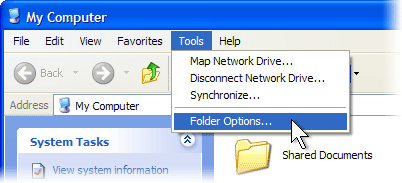
When you browse the Web with Microsoft Internet Explorer, links open with a single click. Yet, when you browse My Computer or My Documents, a single click lets you select a file or folder, but you have to double-click to open it.

If you'd rather single-click to open files and folders, you can change the setting on your mouse (don't worry, this process doesn't require any double clicks).

To change the settings on your mouse


Click Start, and then click My Computer.


Click Tools, and then click Folder Options.


Click Single-click to open an item. Then, click OK.

How to Install a new font in windows XP ?

To install a new font:

1.Click the Start button.
2.Highlight Settings.
3.Click Control Panel.
4.Click Fonts. The Fonts window will open.
5.Click File, which is located on the menu bar.
6.Click Install New Font.
7.Specify the drive and folder where the font you want to install is currently located.
8.Select the font you want to install from the fonts listed in the List of Fonts box.
9.Select Copy Fonts to Fonts Folder (this will put a copy of the font you are installing in the Fonts folder).
10.Click OK.

How do I change my wallpaper in windows XP ?

To change your wallpaper:

1.Right-click your desktop.
2.Highlight Properties.
3.Click the Desktop tab.
4.Select the wallpaper you want from the list that appears in the Background box.
Note: If you would like to display an image you created, you can click Browse to find the image.

5.Select how you want your image to appear on the screen. Choose from the following:
Center Place the image in the center of the screen.
Tile Have the image display as tiles across and down the screen.
Stretch Stretch the image so the image covers the entire screen.

How do I create a desktop shortcut in windows XP ?

To create a shortcut to an item located on the Start menu:

1.Click Start. The Start menu will appear.
2.Locate the item to which you want to create a shortcut. If the item is located on a submenu, go to the submenu.
3.Click and drag the item to your desktop.
To create a shortcut to items visible in Windows Explorer:
1.Open Windows Explorer.
2.Minimize the Windows Explorer window.
3.Locate in Windows Explorer the item to which you want to create a shortcut.
4.Hold down the right mouse button and drag the item onto the desktop.
5.Release the right mouse button. A context menu will appear.
6.Click Create Shortcuts Here.

How to install a new printer in windows XP ?

To install a new printer:

1.Make sure your printer is plugged in, connected to your computer, turned on, and has paper in it.
2.Click the Start button. The Start menu will appear.
3.Highlight Settings. A submenu will appear.
4.Click Printers and Faxes. The Printers and Faxes control panel will appear.
5.Double-click on Add Printer. The Add Printer Wizard will open.
6.Follow the onscreen instructions.

How to change date and time in windows XP ?

To change the date and/or time:

1.Click the Start button, which is located in the lower left corner of the screen. The Start menu will appear.
2.Highlight Settings. A submenu will appear.
3.Click Control Panel. The Control Panel will open.
4.Click Date/Time. The Date/Time Properties dialog box will appear.
5.In the Date frame, select the month and year.
6.In the Month field, click to open the drop-down menu and select the current month.
7.Type the year in the Year field or use the arrows next to the field to move forward or backward until you get to the current year.
8.The Time field is divided into four segments: hour, minutes, seconds, and AM and PM. To make an adjustment:
◦Click in the segment and either type in the correct information or use the arrow keys on the right side to select the correct hour, minute, second or AM or PM.

Time Zone:

1.Click the Time Zone tab.
2.Choose the correct time zone from the drop-down menu.
3.If you want the clock to automatically adjust to daylight saving time, check the box on the screen.
4.Click the Apply button.
5.Click OK.

INSTALL URDU IN WINDOWS XP

On that point following Steps need to perform when you would like to write Urdu language on XP (MS Word, Notepad, etc.) with no software (e.g. Inpage)

1st you confirm that you've set up Right-to-Left Language support. To assure this language support:


1. Go to Control Panel > Regional and Language Options >
choose Languages Tab


2. In Supplemental language support section confirm that Install files for complex script and right-to-left languages (including Thai) is checked, if not check this box.


3. Click OK and insert Windows XP CD in your CD ROM.


4. After Installing right-to-left language a dialog box appears and request you to restart your computer, Click Yes


5. Later on Restarting you have installed right-to-left languages, which is most import to write Urdu in Windows XP Environment


6. Next Step is you require to Install Urdu language with Phonetic Keyboard Layout (like Inpage Phonetic layout) to Install this download and Install this link:


Urdu Language with Phonetic Keyboard Layout (Download this Link)

(Note: Extract this link on Winrar and Click On Setup.exe)


8. Now you've successfully installed Urdu language support with Phonetic keyboard layout like Inpage after installing a toolbar appears on taskbar for active language.


9. If you would like to type Urdu anyplace in Windows XP just use the Shortcut Key Alt + Left Shift to Switch from Urdu/English language.

Windows XP shortcut Keys

General keyboard shortcuts
CTRL+C (Copy)
CTRL+X (Cut)
CTRL+V (Paste)
CTRL+Z (Undo)
DELETE (Delete)
SHIFT+DELETE (Delete the selected item permanently without placing the item in the Recycle Bin)
CTRL while dragging an item (Copy the selected item)
CTRL+SHIFT while dragging an item (Create a shortcut to the selected item)
F2 key (Rename the selected item)
CTRL+RIGHT ARROW (Move the insertion point to the beginning of the next word)
CTRL+LEFT ARROW (Move the insertion point to the beginning of the previous word)
CTRL+DOWN ARROW (Move the insertion point to the beginning of the next paragraph)
CTRL+UP ARROW (Move the insertion point to the beginning of the previous paragraph)
CTRL+SHIFT with any of the arrow keys (Highlight a block of text)
SHIFT with any of the arrow keys (Select more than one item in a window or on the desktop, or select text in a document)
CTRL+A (Select all)
F3 key (Search for a file or a folder)
ALT+ENTER (View the properties for the selected item)
ALT+F4 (Close the active item, or quit the active program)
ALT+ENTER (Display the properties of the selected object)
ALT+SPACEBAR (Open the shortcut menu for the active window)
CTRL+F4 (Close the active document in programs that enable you to have multiple documents open simultaneously)
ALT+TAB (Switch between the open items)
ALT+ESC (Cycle through items in the order that they had been opened)
F6 key (Cycle through the screen elements in a window or on the desktop)
F4 key (Display the Address bar list in My Computer or Windows Explorer)
SHIFT+F10 (Display the shortcut menu for the selected item)
ALT+SPACEBAR (Display the System menu for the active window)
CTRL+ESC (Display the Start menu)
ALT+Underlined letter in a menu name (Display the corresponding menu)
Underlined letter in a command name on an open menu (Perform the corresponding command)
F10 key (Activate the menu bar in the active program)
RIGHT ARROW (Open the next menu to the right, or open a submenu)
LEFT ARROW (Open the next menu to the left, or close a submenu)
F5 key (Update the active window)
BACKSPACE (View the folder one level up in My Computer or Windows Explorer)
ESC (Cancel the current task)
SHIFT when you insert a CD-ROM into the CD-ROM drive (Prevent the CD-ROM from automatically playing)
CTRL+SHIFT+ESC (Open Task Manager)

Dialog box keyboard shortcuts
If you press SHIFT+F8 in extended selection list boxes, you enable extended selection mode. In this mode, you can use an arrow key to move a cursor without changing the selection. You can press CTRL+SPACEBAR or SHIFT+SPACEBAR to adjust the selection. To cancel extended selection mode, press SHIFT+F8 again. Extended selection mode cancels itself when you move the focus to another control.
CTRL+TAB (Move forward through the tabs)
CTRL+SHIFT+TAB (Move backward through the tabs)
TAB (Move forward through the options)
SHIFT+TAB (Move backward through the options)
ALT+Underlined letter (Perform the corresponding command or select the corresponding option)
ENTER (Perform the command for the active option or button)
SPACEBAR (Select or clear the check box if the active option is a check box)
Arrow keys (Select a button if the active option is a group of option buttons)
F1 key (Display Help)
F4 key (Display the items in the active list)
BACKSPACE (Open a folder one level up if a folder is selected in the Save As or Open dialog box)

Microsoft natural keyboard shortcuts
Windows Logo (Display or hide the Start menu)
Windows Logo+BREAK (Display the System Properties dialog box)
Windows Logo+D (Display the desktop)
Windows Logo+M (Minimize all of the windows)
Windows Logo+SHIFT+M (Restore the minimized windows)
Windows Logo+E (Open My Computer)
Windows Logo+F (Search for a file or a folder)
CTRL+Windows Logo+F (Search for computers)
Windows Logo+F1 (Display Windows Help)
Windows Logo+ L (Lock the keyboard)
Windows Logo+R (Open the Run dialog box)
Windows Logo+U (Open Utility Manager)

Accessibility keyboard shortcuts
Right SHIFT for eight seconds (Switch FilterKeys either on or off)
Left ALT+left SHIFT+PRINT SCREEN (Switch High Contrast either on or off)
Left ALT+left SHIFT+NUM LOCK (Switch the MouseKeys either on or off)
SHIFT five times (Switch the StickyKeys either on or off)
NUM LOCK for five seconds (Switch the ToggleKeys either on or off)
Windows Logo +U (Open Utility Manager)

Windows Explorer keyboard shortcuts
END (Display the bottom of the active window)
HOME (Display the top of the active window)
NUM LOCK+Asterisk sign (*) (Display all of the subfolders that are under the selected folder)
NUM LOCK+Plus sign (+) (Display the contents of the selected folder)
NUM LOCK+Minus sign (-) (Collapse the selected folder)
LEFT ARROW (Collapse the current selection if it is expanded, or select the parent folder)
RIGHT ARROW (Display the current selection if it is collapsed, or select the first subfolder)

Shortcut keys for Character Map
After you double-click a character on the grid of characters, you can move through the grid by using the keyboard shortcuts:
RIGHT ARROW (Move to the right or to the beginning of the next line)
LEFT ARROW (Move to the left or to the end of the previous line)
UP ARROW (Move up one row)
DOWN ARROW (Move down one row)
PAGE UP (Move up one screen at a time)
PAGE DOWN (Move down one screen at a time)
HOME (Move to the beginning of the line)
END (Move to the end of the line)
CTRL+HOME (Move to the first character)
CTRL+END (Move to the last character)
SPACEBAR (Switch between Enlarged and Normal mode when a character is selected)

Microsoft Management Console (MMC) main window keyboard shortcuts
CTRL+O (Open a saved console)
CTRL+N (Open a new console)
CTRL+S (Save the open console)
CTRL+M (Add or remove a console item)
CTRL+W (Open a new window)
F5 key (Update the content of all console windows)
ALT+SPACEBAR (Display the MMC window menu)
ALT+F4 (Close the console)
ALT+A (Display the Action menu)
ALT+V (Display the View menu)
ALT+F (Display the File menu)
ALT+O (Display the Favorites menu)

MMC console window keyboard shortcuts
CTRL+P (Print the current page or active pane)
ALT+Minus sign (-) (Display the window menu for the active console window)
SHIFT+F10 (Display the Action shortcut menu for the selected item)
F1 key (Open the Help topic, if any, for the selected item)
F5 key (Update the content of all console windows)
CTRL+F10 (Maximize the active console window)
CTRL+F5 (Restore the active console window)
ALT+ENTER (Display the Properties dialog box, if any, for the selected item)
F2 key (Rename the selected item)

Remote desktop connection navigation
CTRL+ALT+END (Open the Microsoft Windows NT Security dialog box)
ALT+PAGE UP (Switch between programs from left to right)
ALT+PAGE DOWN (Switch between programs from right to left)
ALT+INSERT (Cycle through the programs in most recently used order)
ALT+HOME (Display the Start menu)
CTRL+ALT+BREAK (Switch the client computer between a window and a full screen)
ALT+DELETE (Display the Windows menu)
CTRL+ALT+Minus sign (-) (Place a snapshot of the entire client window area on the Terminal server clipboard and provide the same functionality as pressing ALT+PRINT SCREEN on a local computer.)
CTRL+ALT+Plus sign (+) (Place a snapshot of the active window in the client on the Terminal server clipboard and provide the same functionality as pressing PRINT SCREEN on a local computer.)

Microsoft Internet Explorer navigation
CTRL+B (Open the Organize Favorites dialog box)
CTRL+E (Open the Search bar)
CTRL+F (Start the Find utility)
CTRL+H (Open the History bar)
CTRL+I (Open the Favorites bar)
CTRL+L (Open the Open dialog box)
CTRL+N (Start another instance of the browser with the same Web address)
CTRL+O (Open the Open dialog box, the same as CTRL+L)
CTRL+P (Open the Print dialog box)
CTRL+R (Update the current Web page)
CTRL+W (Close the current window)